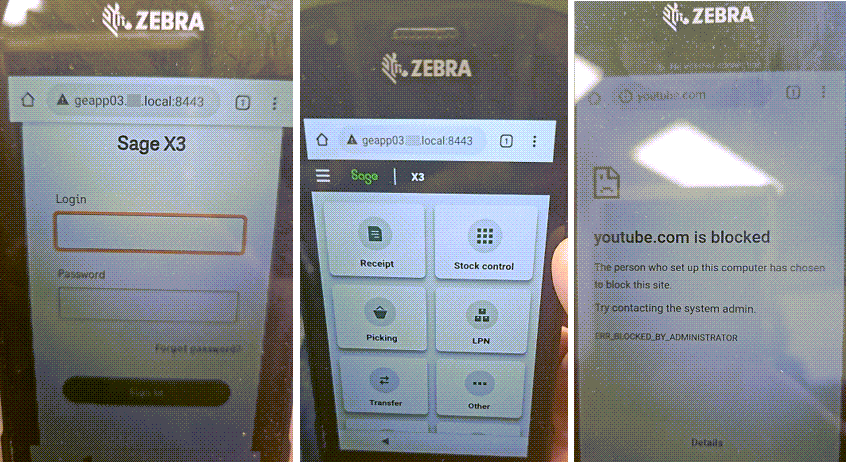
Zebra Scanner
“One of those all-too-common situations where a lack of planning created an emergency situation. But hey this is our job right; this is what we do and how we thrive.”
Technical
Introduction
This document will outline the steps necessary to provision a Zebra TC21 scanner. In addition it will provide a basic understanding of the Intune technologies used and how to support these devices.
Overview
Device
Zebra TC21
An Android 10 based device provided by Sage to be used for inventory purposes at Enviroflight.
Intune
Endpoint management tool used for provisioning, inventory, application delivery, configuration, compliance, security and various other management features.
Workflow
TC21
Device documentation
TC21 TC26 TC21-HC TC26-HC Touch Computer
If you get asked to enter a password and username: The default username is admin. The default password is admin.
Factory Reset
Existing Device
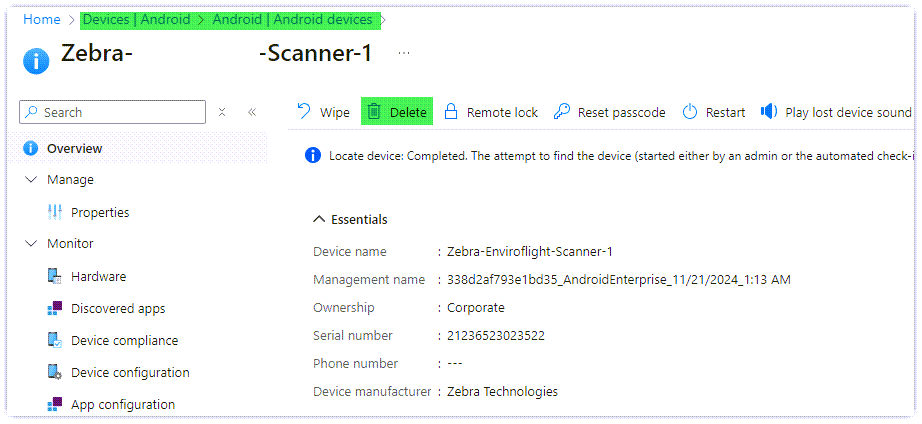
If this is an existing device navigate to Devices\Android to locate your device. Select Delete to remove.
New Device
On the Zebra scanner itself, navigate to
Settings
System
Reset Options
Enterprise Reset
Erase All Data
Reset in Progress
Will Restart
Erasing
Will Restart
TC 21 Screen Initializes
Enrollment
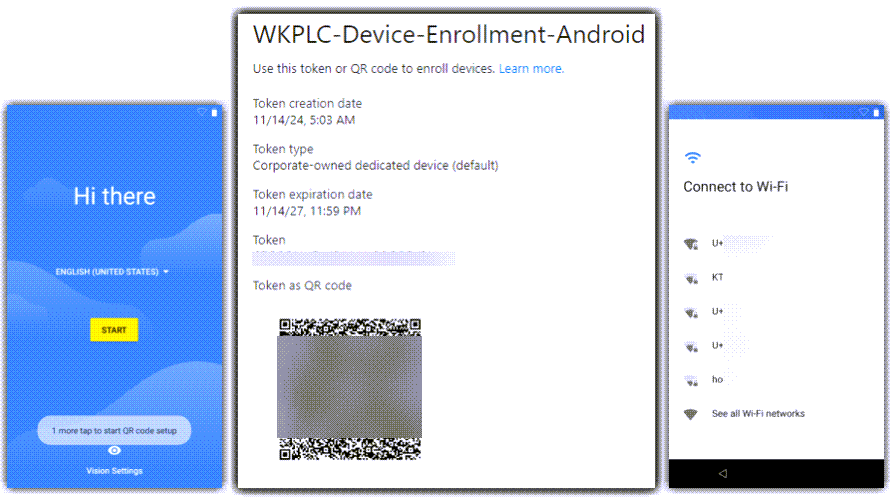
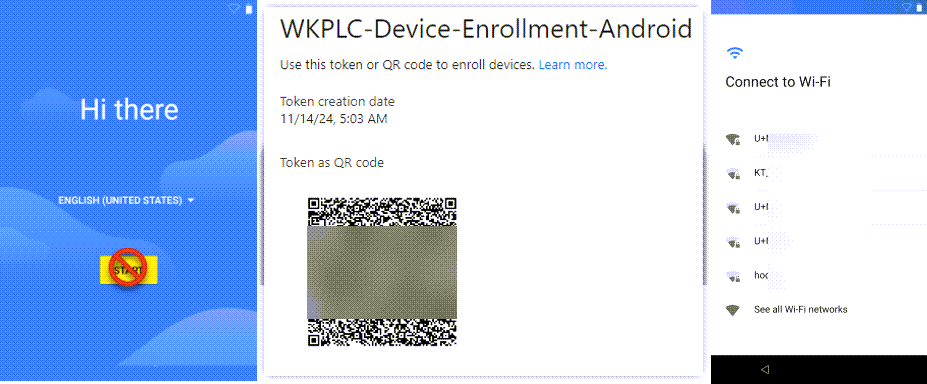
When HI There appears, scan the QR Code below and select an available WIFI.
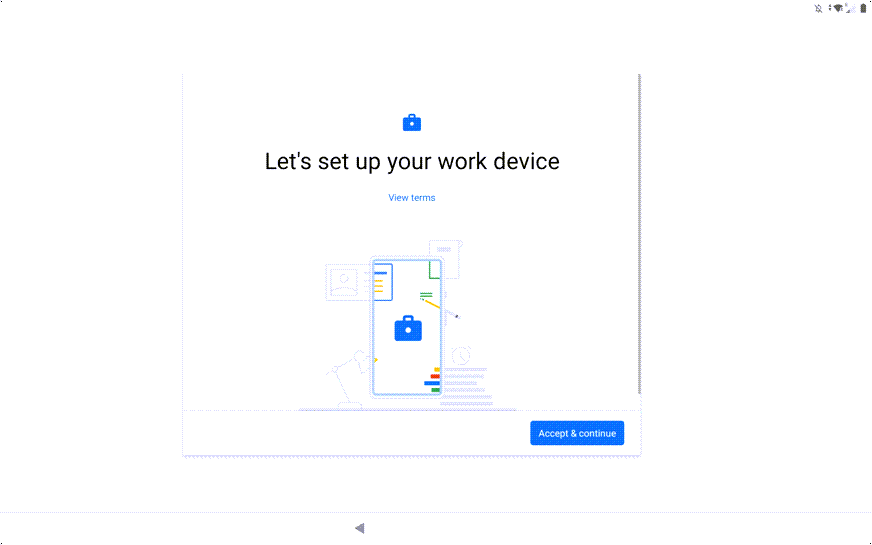
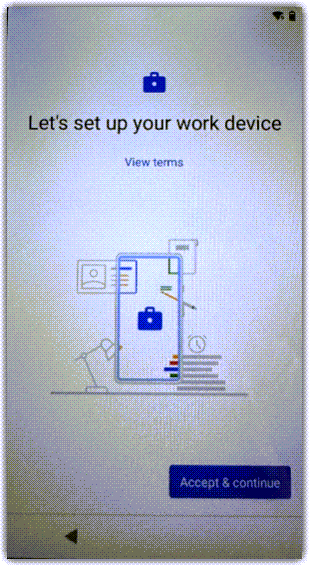
After connecting to WIFI, we will see the following. Click Accept and Continue.
You may see a message about This Device Isn’t Private. Select Next. Soon there after you will hear a ring noise and you should see:
Updating Device (this may take a few minutes).
Registering
Install Work Apps
Typically Intune.
Device Policy
KIOSK Environment
Policy
Restrictions
Background
Apps
Sage
Bomgar Remote Control
Intune
Monitoring
Troubleshooting
Exiting KIOSK Mode
Navigate to the Settings icon in the top right (gear).
Select Exit KIOSK mode at the bottom. Enter the password – xxxxxxx.
Remote Control
As of today KIOSKMode needs to be exited prior to remote support using Bomgar. Jump clients are installed by default and can be removed. These systems can be referenced under the Workplace Cloud Native group (we will move to a web link however there has been some difficulty with identifying the proper whitelisting).
User Experience
Introduction
This document will outline the steps necessary to provision a Zebra TC21 scanner used for Enviroflight.
Overview
Device
Zebra TC21
An Android 10 based device provided by Sage to be used for inventory purposes at Enviroflight.
Factory Reset
From the Zebra device itself, Navigate to
Settings
System
Reset Options
Enterprise Reset
Erase All Data
Enter PIN
Reset in Progress
Will Restart
Erasing
Will Restart
TC 21 Screen Initializes
Enrollment
Ensure a WIFI network is available. If necessary, you can temporarily use a hotspot on your phone.
When HI There appears,do not click Start. Scan the QR Code below (yellow button on side of scanner) and select an available WIFI. You may have to use a hotspot initially.
After connecting to WIFI, we will see the following. Click Accept and Continue.
You may see a message about This Device Isn’t Private. Select Next. Soon thereafter you will hear a ring noise, and you should see:
Updating Device (this may take a few minutes).
Registering
Install Work Apps
Typically, Intune.
Device Policy
KIOSK Environment
Policy
Restrictions
Background
Installing New App
Sage
Bomgar Remote Control
Intune
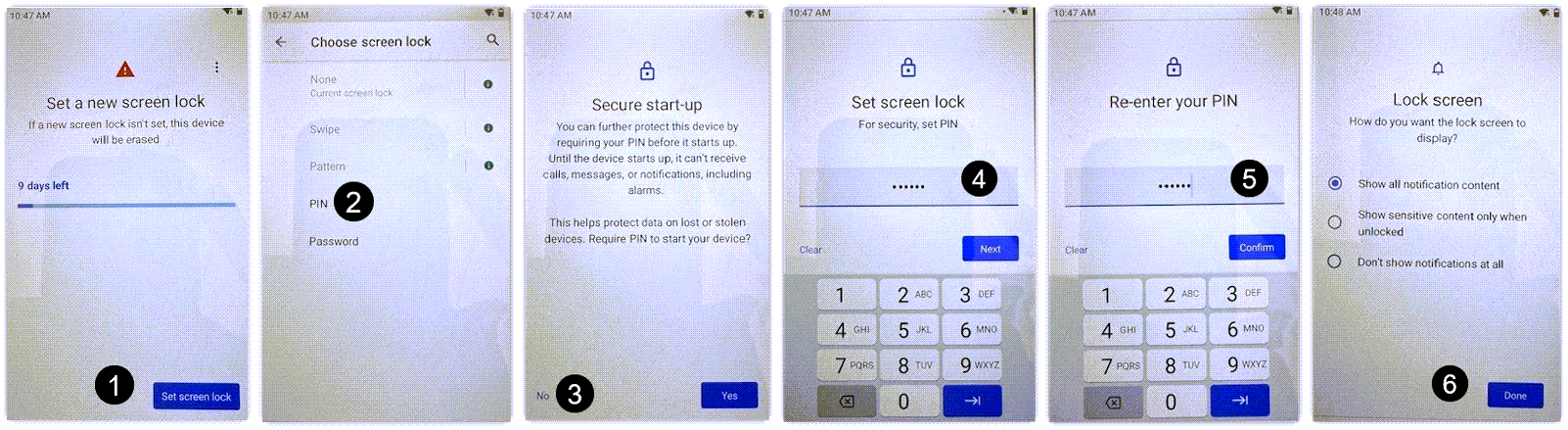
Screen Lock
Pin security is required for the device. Use the following steps.
Completion
At this phase you should see the background and the 3 apps. Navigation and access will be limited.
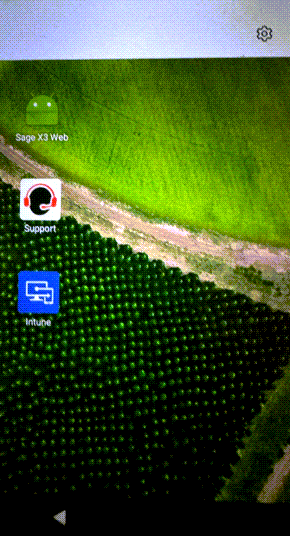
Options are limited and access restricted to Sage only.